App Hive: Closed Testing Guide & Operating Manual
App Hive is a community-driven reciprocal testing platform built for independent Android developers to safely satisfy Google Play's mandatory 12-tester, 14-day closed testing requirement on authentic, physical retail devices. This documentation serves as your official step-by-step operating guide—covering everything from Google Play Console setup and tester group synchronization to daily task validation and community arbitration protocols.
1 Join the Official Testers Google Group
Google Play enforces that every closed test download must originate from an authorized Google Account. Joining our group authorizes your personal Android hardware to install peer builds directly from the store.
Step-by-Step Instructions:
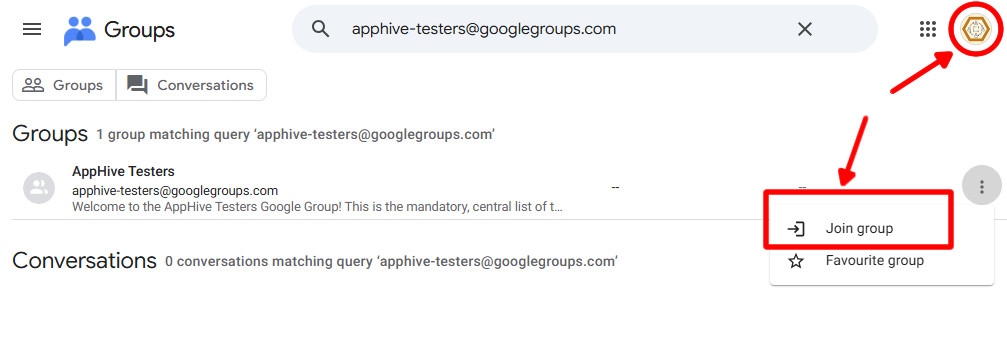
- Open the official Google Group page:
https://groups.google.com/u/2/g/apphive-testers - Check the profile avatar at the top right to verify you are using your phone's primary Play Store account.
- Click the Join group button.
- Set your subscription preference (select "No email" if you do not wish to receive digest emails) and confirm.
2 Link Google Group in Google Play Console
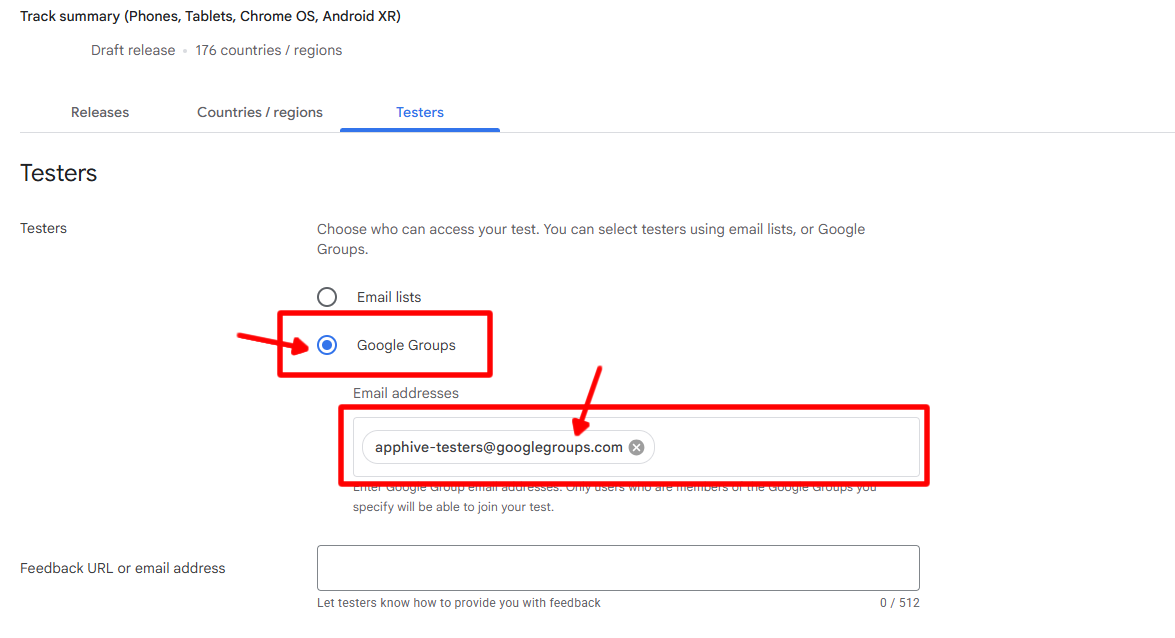
Grant testing permissions to your Hive members. Adding our central Google Group grants all 16 peers instant access without you manually typing individual email addresses.
Official Tester Group Email:
Play Console Configuration:
- Sign in to your Google Play Console and select your app.
- In the left sidebar, navigate to Test and Release > Testing > Closed testing.
- Find your active closed testing track and click Manage track.
- Switch to the Testers tab at the top.
- Under "How testers join your test", select Google Groups.
- Click Add Google Group, enter
apphive-testers@googlegroups.com, and click Add. - Provide your feedback URL or developer contact email in the required field.
- Click Save changes in the bottom right corner.
3 Enable Global Country Availability
App Hive is an international developer network. Your 16 peer testers will be located in diverse global regions (US, Germany, Turkey, India, Brazil, etc.). If your testing track is limited to your home country, peers will receive a "This item is not available in your country" installation block.
Enabling All Countries:
- In your Closed Testing track, navigate to the Countries / regions tab.
- Click Add countries / regions.
- Check the master box at the top to select All countries/regions (170+ territories).
- Click Save.
4 Paid Apps: 100% Discount / Free Price Rule
If your application is configured as a Paid App on Google Play, pay close attention to this strict platform policy:
Required Action Before Joining a Hive:
- You must schedule a 100% discount sale (or temporarily set the price to 0.00) in Google Play Console under Monetize > App pricing.
- Google Play requires sales to be scheduled with a future start date. Plan ahead and set the discount start date before entering a Hive.
- Strict Joining Policy: You must ONLY join an App Hive after your application's 100% discount is officially active and downloadable for free on Google Play.
Note: Joining a Hive while your app requires payment will prompt immediate Install Block Reports from peers, triggering automatic removal from the Hive and reputation point penalties.
The 5 Hive Lifecycle Stages
Every Hive operates through a deterministic state machine to ensure absolute compliance with Google's 14-day continuous requirement.
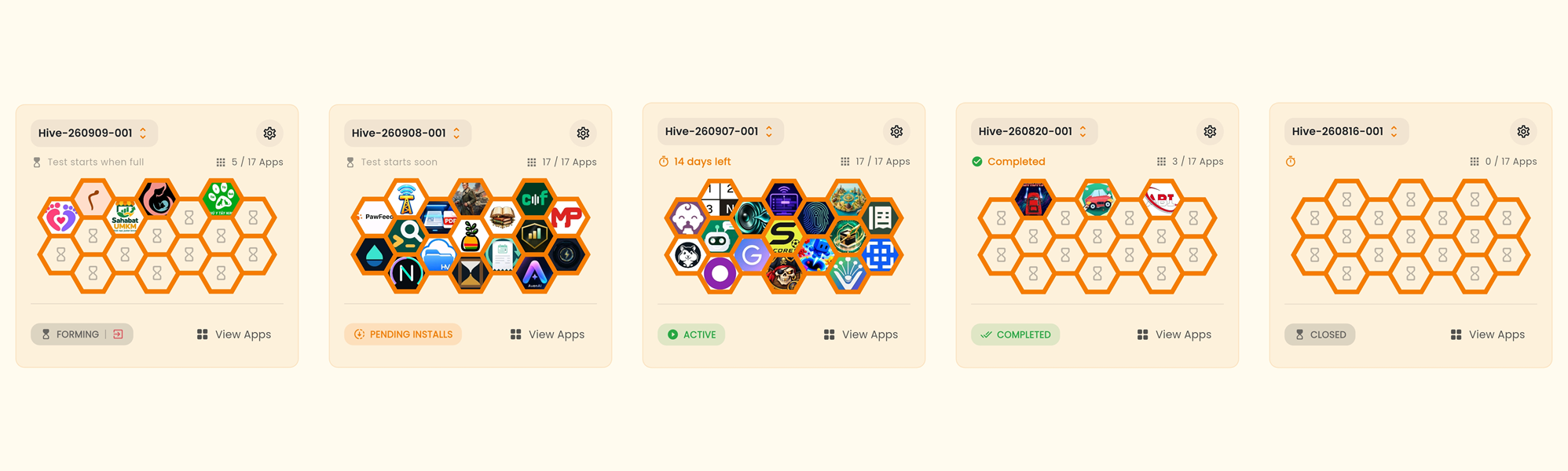
1 Forming Stage
New developers join the Hive with their registered applications until exactly 17 members assemble.
- Leaving the Hive: You can voluntarily leave during the Forming stage, but doing so forfeits a portion of your entry User Points (UP) as an administrative cancellation fee.
- Transition: When the 17th member joins, the Hive locks automatically and transitions to Pending Installs.
2 Pending Installs (24-Hour Window)
A dedicated 24-hour setup window where all 17 developers install the other 16 applications on their physical Android devices.
- Auto-Activation: When all 17 members install all 16 apps—or when exactly 24 hours expire—the Hive transitions to the Active stage.
- The 5-Report Removal Rule: If an app cannot be downloaded from Google Play, members report it via the Block Report button.
3 Active Stage (15-Day Guaranteed Track)
Google mandates 14 continuous days. App Hive runs testing for 15 days to provide an ironclad buffer against international time zone variances and Play Console telemetry latency.
- Automated UTC 00:00 Cron Audit: Daily testing tasks reset every day at UTC 00:00. At this exact moment, the backend cron engine automatically audits all task executions from the preceding 24-hour window, assigns Inactivity Points (IP) to non-compliant users, and executes disciplinary actions.
- Dual Workspace Unlocked: Once active, the Testing screen unlocks the tabs: Hive Tests and Peer Tests.
- No Voluntary Exits: It is strictly impossible to manually leave an Active Hive. You are committed to your 16 peers.
- Expulsion & Uninstall Tasks: If a developer hits 10 IP and is kicked out during the Active stage, the remaining members receive an automated Uninstall Task in the app to cleanly remove that abandoned app from their hardware.
4 Completed Stage
When the 15-day countdown reaches zero, the testing mission is fulfilled.
- Safe Exit: Developers can now leave the Hive with verified 14-day testing metrics and apply for Google Play Production Track access.
- Peer Evaluation: Rate and review peer performance. High ratings reward discounts on future Hive entry fees.
5 Closed Stage (Database Cleanup)
Exactly 5 days after reaching Completed status, the Hive closes permanently.
- Auto-Detach: Any members still in the Hive are detached automatically.
- Data Purge: All task screenshots, daily verification logs, and communication data for that Hive are permanently deleted from the database to uphold server privacy and storage hygiene.
Installation Tasks Flow & Block Reports
Installing applications is governed by an automated, bi-directional task distribution engine that operates during Forming and Pending Installs:
Bi-directional Task Allocation
- Upon Joining: As soon as you join a Hive, installation tasks for all apps already present in that Hive are instantly assigned to you.
- Reciprocal Push: Concurrently, your application's installation task is pushed to the dashboards of all existing members.
- Dynamic Intake: As new members continue to join during the Forming stage, new installation tasks are generated dynamically for everyone.
- Completion Window: All installation tasks must be finalized before the Hive transitions into the Active stage.
Block Reports vs. The Universal Account Diagnostic
If a specific application cannot be downloaded from Google Play (e.g., store error, missing package), submit an Installation Block Report for that app so the system can track it.
If you find yourself unable to download any of the applications in your Hive, do not file block reports against every app. This universally indicates an account configuration error on your side: You did not join the Google Group with the Google Account currently active on your phone's Google Play Store app. Switch your Play Store account to the authorized email or rejoin the group with your active account.
Tab 1: Hive Tests (Daily In-Hive Protocol)
Inside an Active Hive, your primary daily testing workspace is the Hive Tests tab. This is where your mandatory 15-day reciprocal testing takes place.
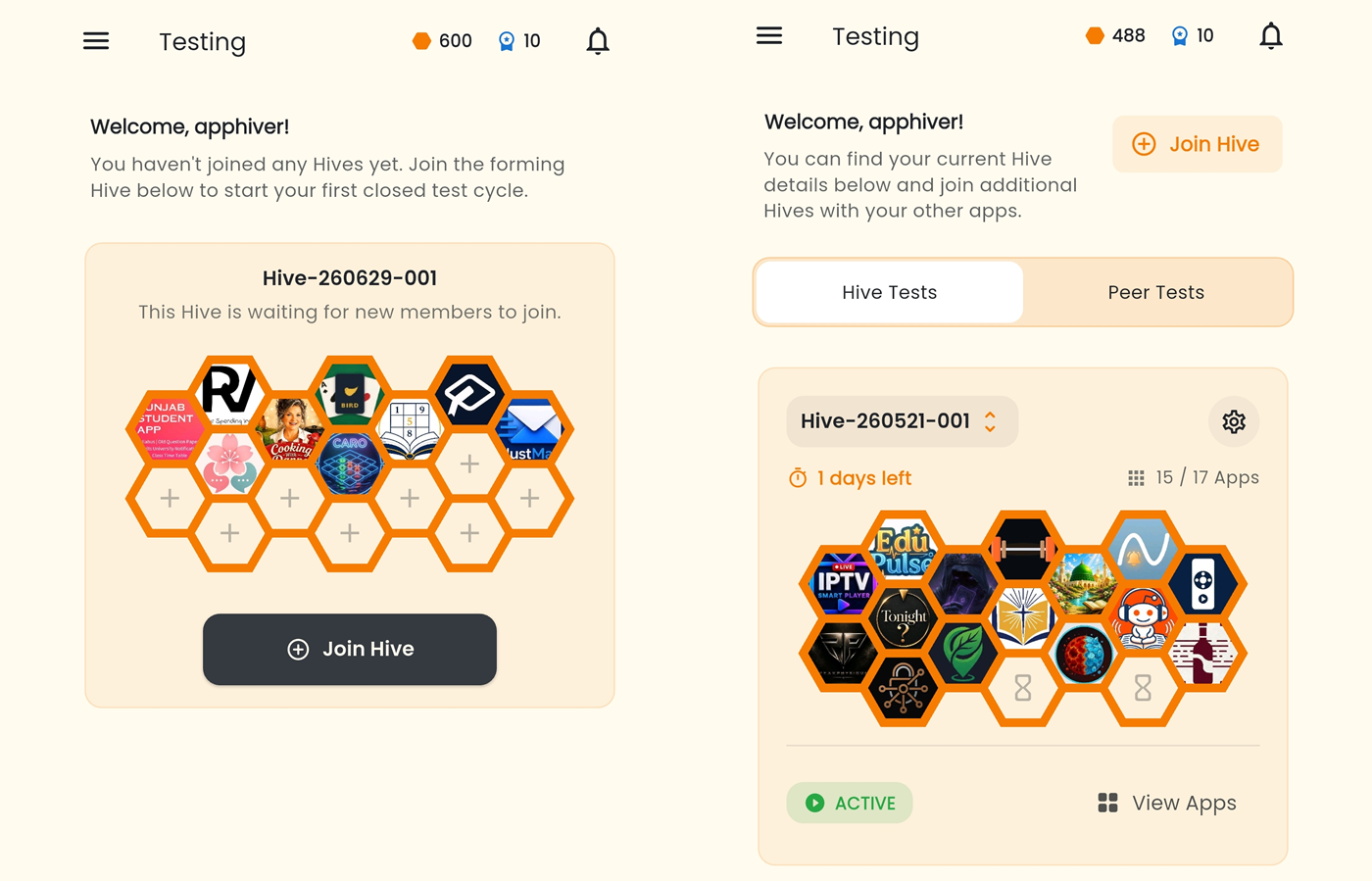
When you first join App Hive, you will not see the top tabs (Hive Tests / Peer Tests) on the Testing screen. Instead, you will see a focused overview of your current Hive structure, members, and installation tasks.
The dual-tab structure (Hive Tests & Peer Tests) unlocks ONLY when:
- Your current Hive officially transitions to the Active stage, OR
- You have previously successfully completed at least one Hive (Veteran status).
Daily Testing Execution Standards
Every 24 hours (resetting at UTC 00:00), you receive testing tasks for the other 16 applications in your Hive:
- The 15-Second Active Rule: When opening an app, you must keep it open and interact with it for at least 15 continuous seconds.
- Screenshot Verification: Take an in-app screenshot showing the app running on your device and attach it to your daily test report in App Hive.
Login & Authentication Protocol
- Owner Obligation: If your application requires authentication, you must provide public demo/test login credentials when registering your app into the Hive.
- Tester Obligation: If the app owner provided test login credentials, you must log in using those credentials before taking the verification screenshot.
- No Test Credentials Provided: If the app owner did not provide test credentials, logging in is strictly optional. Submitting a screenshot of the login screen satisfies the test task.
Tab 2: Peer Tests (On-Demand Extra Testers)
Located right next to Hive Tests on the Testing screen (once unlocked), the Peer Tests tab is an on-demand marketplace where developers can hire or provide extra testing outside of their standard Hive.
The Purpose of Peer Tests (+4 Buffer & Beyond)
A standard Hive guarantees you 16 active testers, giving you a comfortable +4 buffer over Google's required 12. However, developers who want extra redundancy, higher telemetry volume, or broader device coverage can recruit external testers outside their Hive via the Peer Tests tab.
How the Peer Tests Marketplace Works
For App Creators (Requesting Testers)
- Navigate to Peer Tests and create an extra tester request for your Hive application.
- Fund the bounty using your User Points (UP).
- Developers outside your Hive will see your listing and can claim the testing slot.
For External Testers (Earning UP)
- Browse available Peer Test opportunities listed by creators across other Hives.
- Accept the task to become an external tester for that application.
- Test the app daily under your Peer Tests tab to earn substantial UP bounties.
Commitment & Escrow Payout Rules
- Full-Cycle Daily Commitment: When you accept a Peer Test, you commit to opening and testing that app daily until that application's Hive testing period concludes.
- Transparent End Dates: The exact number of required testing days and the definitive end date are displayed to you before you accept the task.
- Escrow Payout on Completion Day: The UP reward is held securely in escrow and is transferred directly to your balance on the exact day the testing process is completed.
Optional Custom Tasks (Update, Test & Review)
Within your active Hive, you can broadcast targeted custom assignments to your 16 peers to gather specific feedback and notify them of store updates.
The 3 Custom Task Categories
1. Update Task
Used when publishing a new version to the Play Store. Alerts members to update their build.
2. Custom Test Task
Requests peers to test a specific feature, screen, navigation flow, or edge-case behavior.
3. Review Task
Invites peers to write a genuine, helpful review and rating on your Google Play Store listing.
Economy & Voluntary Participation Rules
- Optional by Design: Custom tasks appear under Optional Tasks on the Testing page. Peers are never penalized (0 IP) if they choose to skip them.
- Funded via UP: App creators spend User Points (UP) to publish a custom task.
- Earn UP by Completing: Peers who choose to complete custom tasks are rewarded with bonus UP.
- Anti-Abuse & Auto-Cancellation: Custom tasks must strictly adhere to the designated topic. Off-topic or abusive tasks can be flagged by peers. When a task reaches a threshold of community reports, the system automatically cancels the task.
Peer Reviews, Disputes & Hive Judges
App Hive features a decentralized peer review and arbitration engine to eliminate malicious rejections and maintain absolute fairness across all test submissions.
1. Report Review & Limited Rejections
When a tester submits their daily screenshot report, the application owner reviews it. The owner can Accept or Reject the report.
- Restricted Rejection Grounds: App owners cannot reject reports arbitrarily. Rejections are strictly limited to predefined system reasons (e.g., completely black screen, wrong app screenshot, failure to use provided test login).
2. Tester Resubmission vs. Appeal
If your test report is rejected by an app owner, you have two options:
- Resubmit Report: You can open the app again, take a fresh screenshot, and resubmit.
- File an Appeal: If you believe the rejection was unfair, you can appeal the decision to initiate formal arbitration.
3. The Two-Turn Rule (No Endless Rejection Loops)
4. Hive Judges & Disciplinary Verdicts
When an appeal or arbitration is triggered, the dispute is escalated to the Hive Judges:
- Daily System Selection: Hive Judges are impartial members randomly elected by the automated backend system from active Hive peers on a daily basis.
- Binding Judgment: The Judges review the submitted screenshot, rejection reason, and app requirements to render an impartial verdict.
- Penalizing the At-Fault Party: The party found at fault (whether a malicious rejector or a fraudulent tester) is penalized with Inactivity Points (IP) and Reputation (RP) deductions.
The Points Economy: UP, IP & RP Rules
App Hive enforces a three-tier token economy balancing currency, accountability, and long-term reputation.
User Points (UP) — Platform Currency
- 600 UP Registration Bonus: Every new developer receives 600 UP upon signup.
- Dynamic Hive Entry Fee: Standard entry costs 500 UP. This fee is dynamic—high developer ratings grant discounts, while low reputation increases entry cost.
- Earning UP: Complete daily tests in your Hive, complete optional custom tasks, and fulfill accepted Peer Tests to earn continuous UP for your future apps.
Inactivity Points (IP) — Automated Penalties
During the automated UTC 00:00 audit, the system inspects all task completions from the previous day:
- +1 IP: Assigned for each uninstalled app during daily audits.
- +3 IP: Assigned for each missed daily test task.
Reputation Points (RP) — Your Reliability Score
Every developer begins with the maximum score of 10 RP.
Losing RP (Fast & Severe):
- Reaching 5 IP inside a Hive immediately deducts -1 RP.
- Being kicked out of a Hive immediately deducts -3 RP.
- Dropping below 1 RP restricts you from joining new Hives until resolved.
Earning RP (High Prestige):
Troubleshooting & In-App Diagnostics
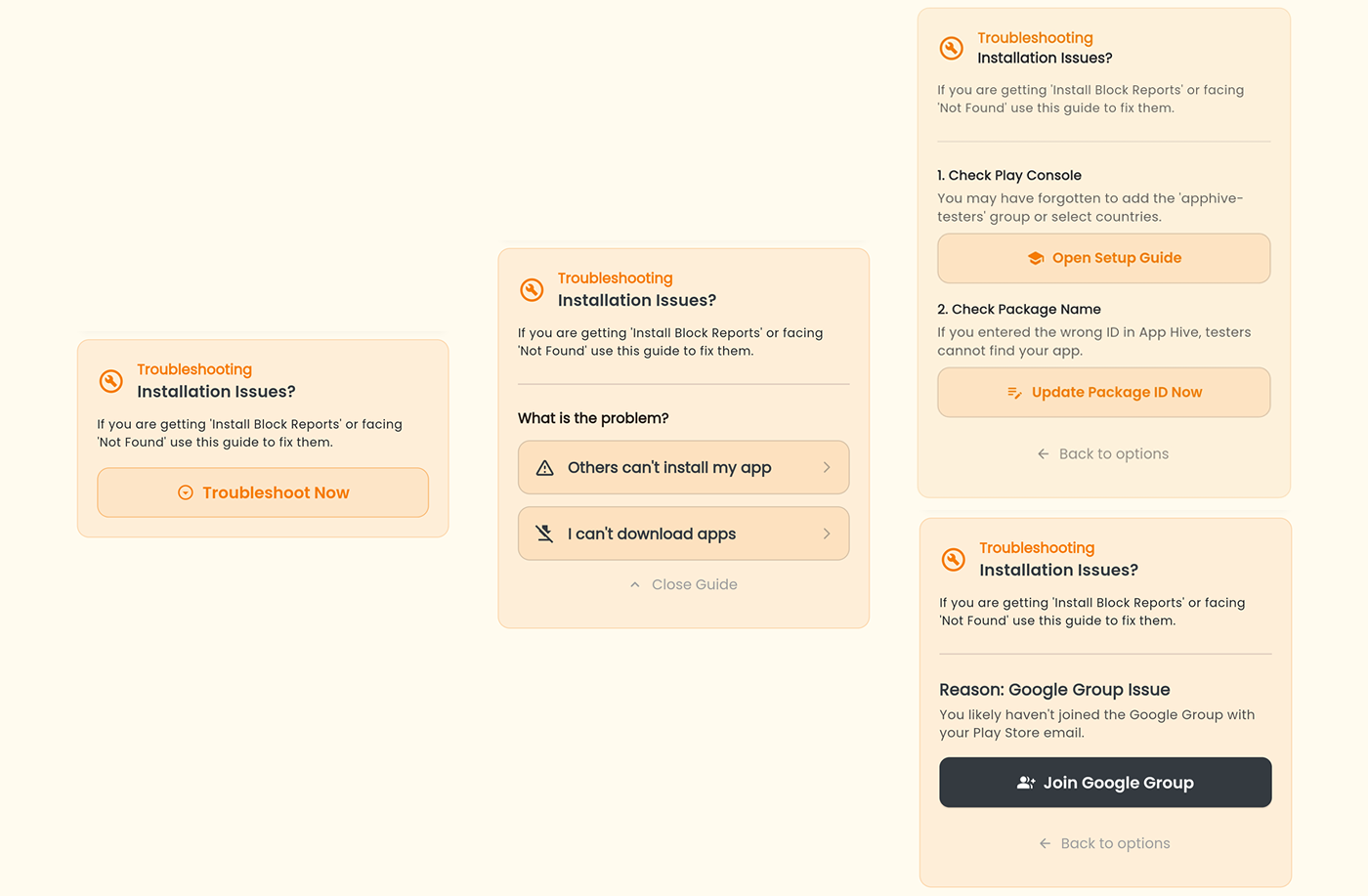
In-App Troubleshooting Wizard (Package ID Correction)
Made a typo in your app's Package ID (e.g., com.example.app) when joining a Hive? You don't need to abandon your track!
- Navigate to the Testing tab inside the App Hive mobile app.
- Tap the Troubleshooting button to open the diagnostic wizard.
- Follow the guided instructions to update your application's Package ID and resync your links.
Common Google Play Download Errors
- Account Mismatch: Double-check that your phone's Google Play Store app is using the exact Gmail address joined to
apphive-testers@googlegroups.com. - Google Sync Latency: When you first add the Google Group in Play Console, Google Play servers can take up to 2-4 hours to propagate permissions globally.
- Country Exclusions: Verify that you checked "All countries/regions" under your track's Countries tab in Play Console.